Creating Preset Addons
Overview
Preset addons are a feature that allows you to create addons that can add items to presets configured in Avatar Creator Setting or Avatar Creator Parts Setting.
This can be used when creating retextures that support color changes.
Usage
This will be explained using the example of adding a new BodyType to the Lugharian tribe later.
First, create a new game object.
Next, add Avatar Creator Preset Addon to that game object.
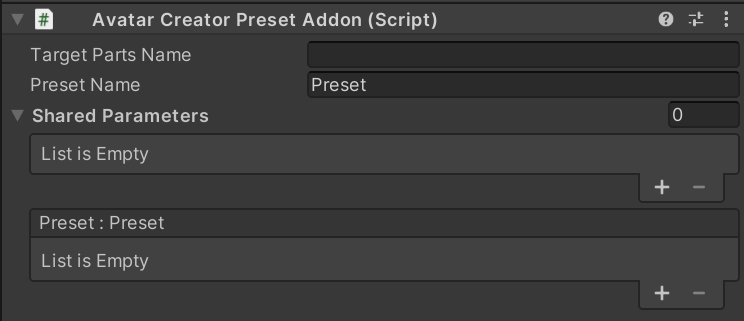
In Target Parts Name, set the name of the part that has the preset parameter you want to combine with. For the base, you can leave it blank.
This time we want to add a new preset to the base BodyType, so we'll leave it as is.
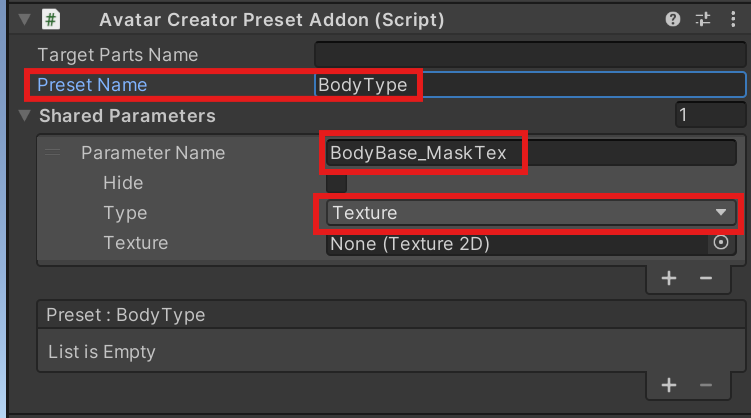
Preset Name is the name of the preset to add to. Enter BodyType.
Next, add the shared parameters to be changed by the preset.
Press the plus button in Shared Parameters and add the BodyBase_MaskTex parameter just like the preset set in LugharianCreation, and set Type to Texture.
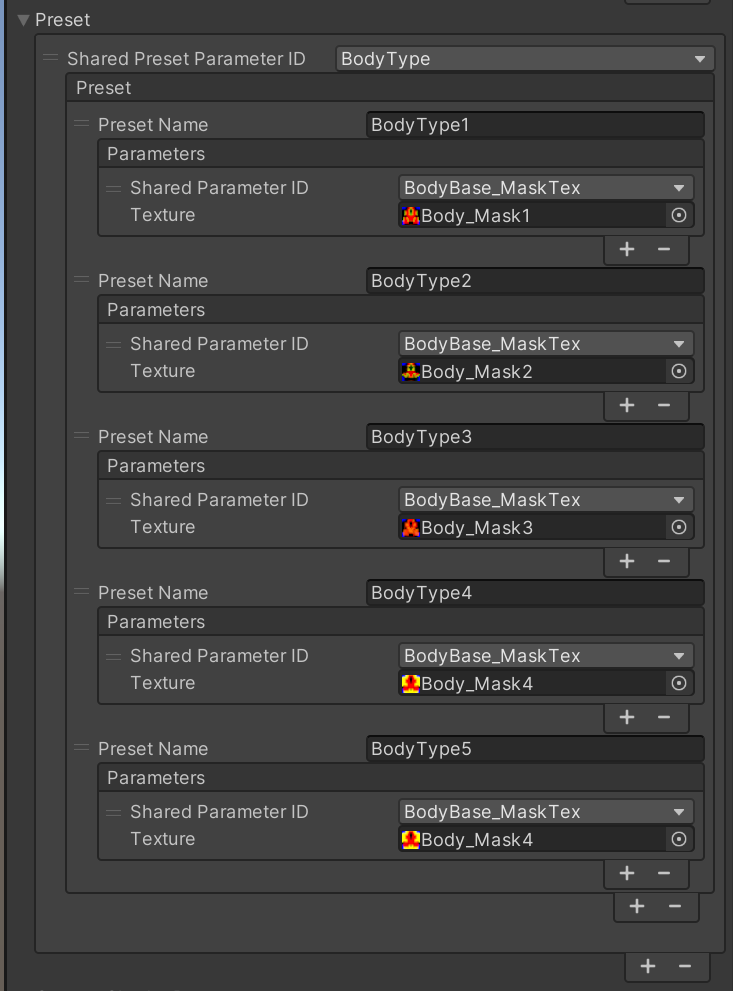
Items in the BodyType preset set in LugharianCreation
Add BodyBase_MaskTex to Shared Parameters and set Type to Texture
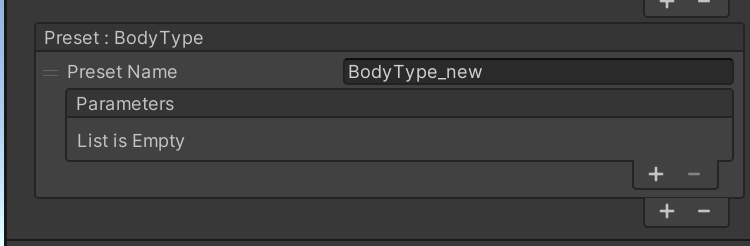
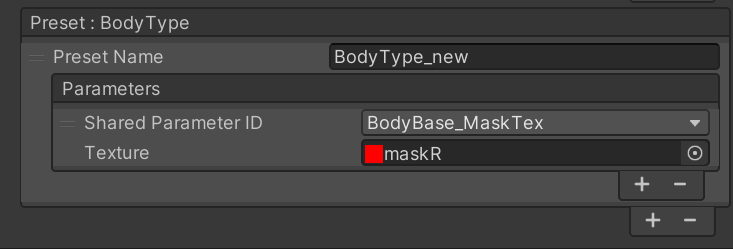
Then, press the plus button from the Preset item to create a new preset, and set the Preset Name to BodyType_new etc.
Please be careful to make the preset name unique at this time. If presets have the same name, they will not be reflected.
Press the plus button in the Parameters list, change Shared Parameter ID to the BodyBase_MaskTex you set earlier, and set a new mask to Texture.
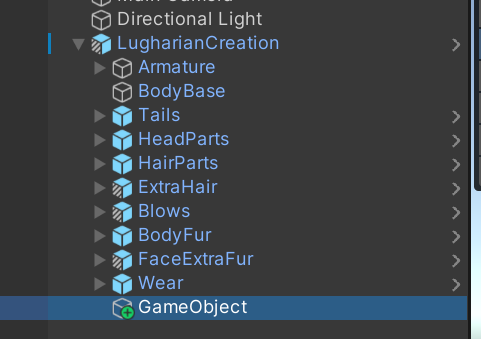
Place this game object once under the hierarchy of LugharianCreation (the object with AvatarCreatorSetting attached).
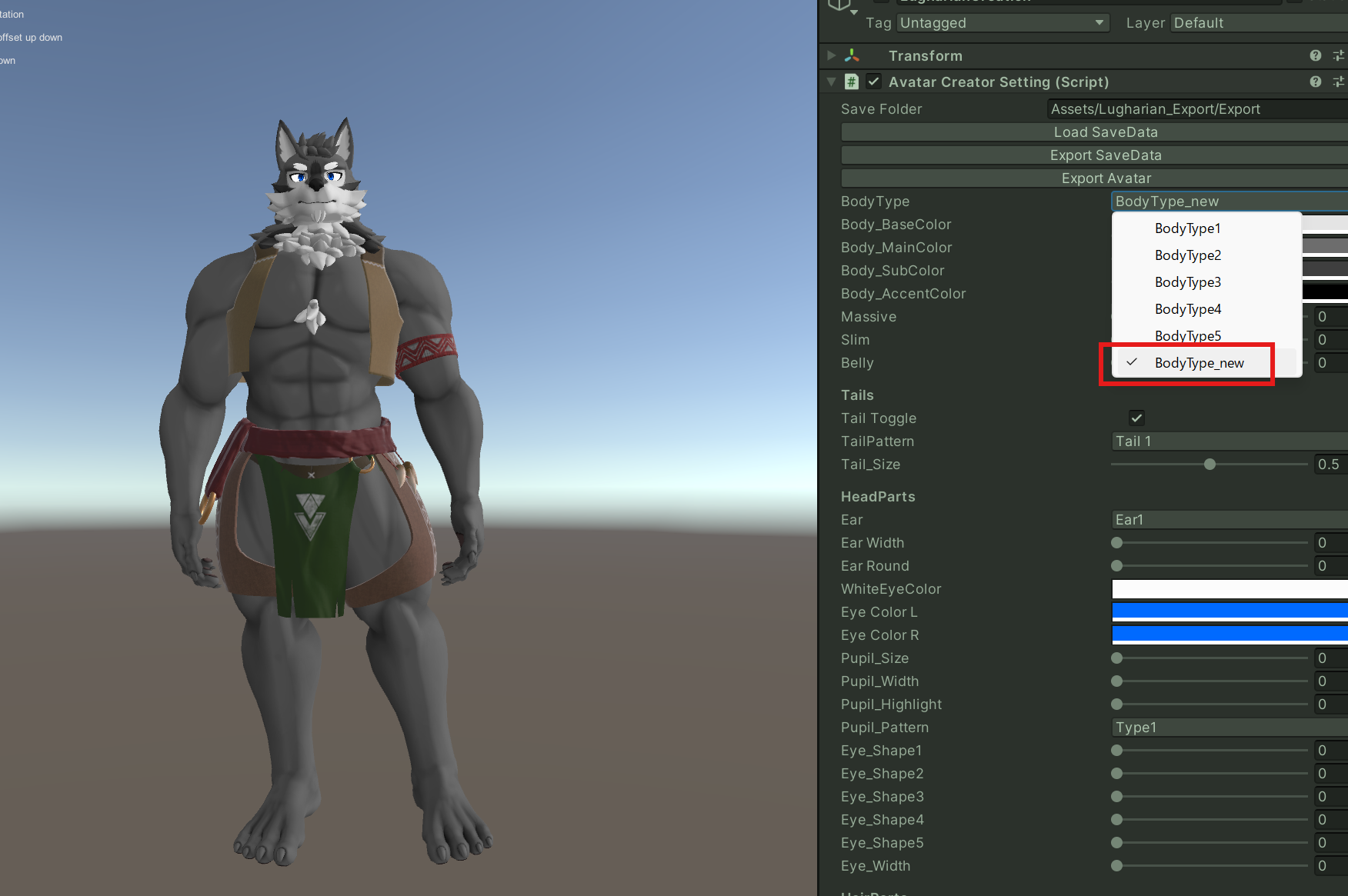
Let's try playing once in this state.
BodyType_new is added to BodyType and changes when selected.
BodyType is also used by other parts objects, so set those as well.
The applicable ones are HeadParts, BodyFur, and FaceExtraFur.
Create a new game object and place it under the addon object from earlier. The location can be anywhere, but if it's for the same preset parameter, making them parent-child relationships will be convenient when creating prefabs later. It's also good to give them appropriate names.

Make the following settings for the newly added HeadParts_BodyType_Addon. The Target Parts Name changes, and the target Shared Parameters also change.
Similarly, change BodyFur and FaceExtraFur.
BodyFur settings
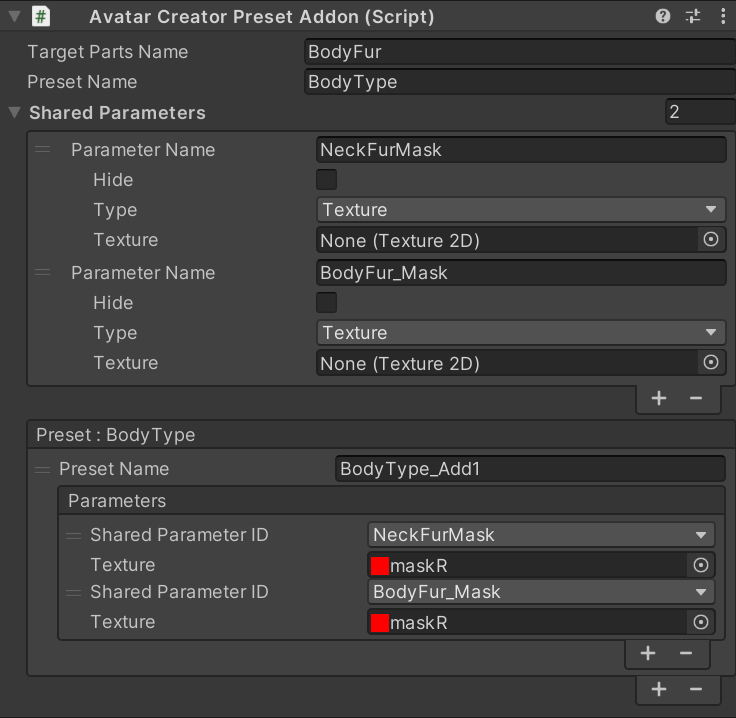
FaceExtraFur settings
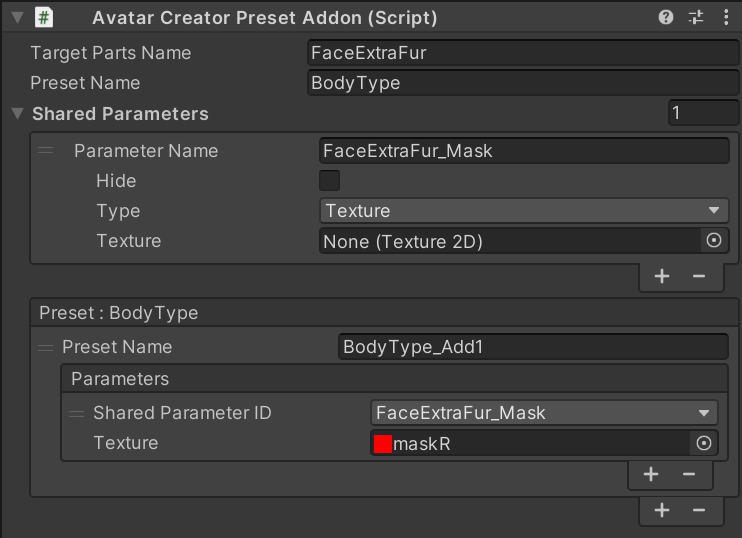
If it finally looks like this, it's OK.
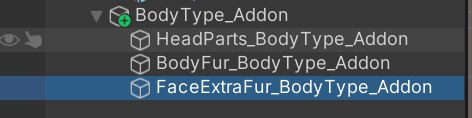
When you run it again, it will look like this.
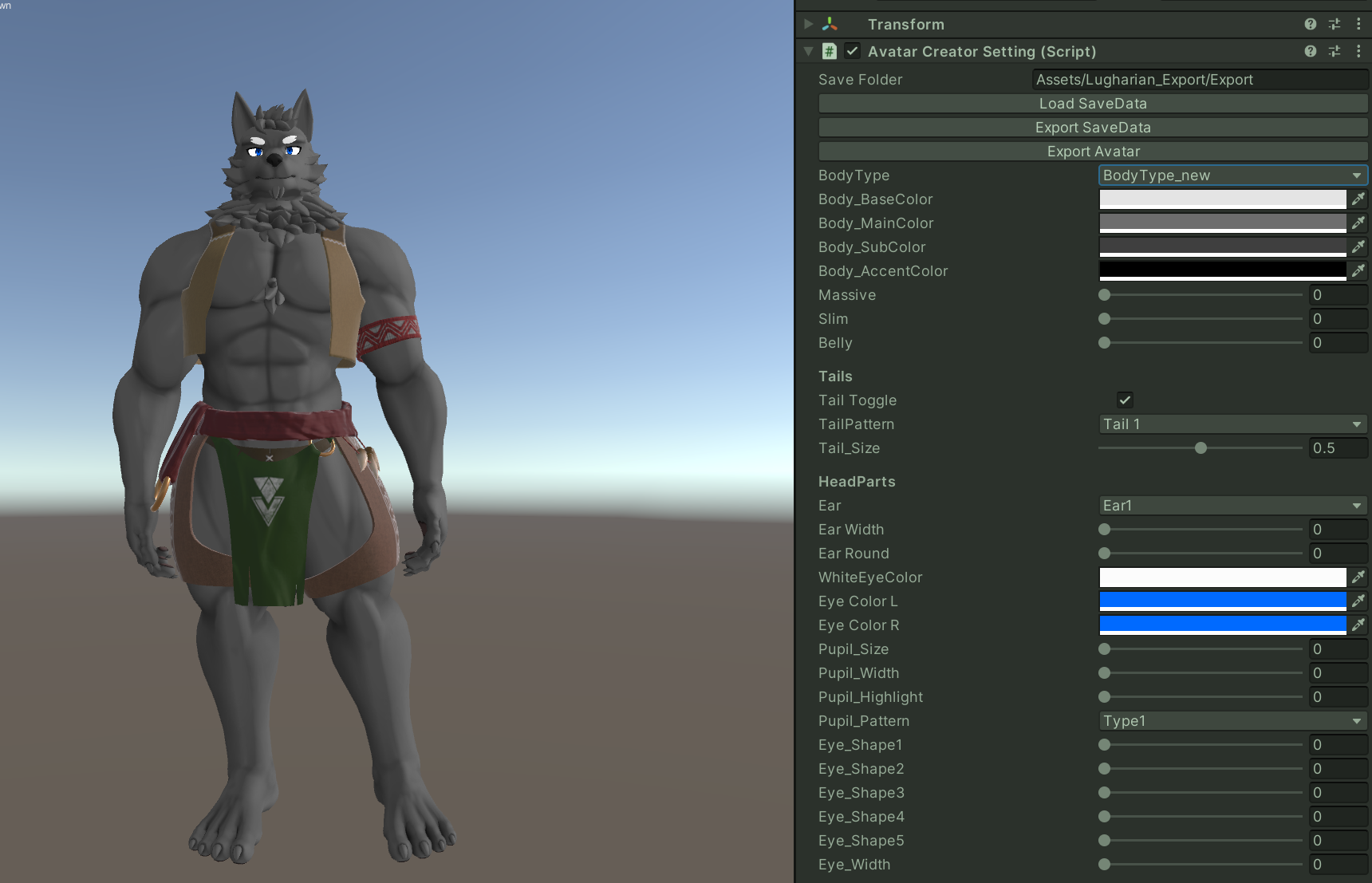
We were able to add BodyType later.