Frequently Asked Questions
Can you support clothing changes via Expression Menu?
Starting with v1.7, a new setup workflow using Modular Avatar has been added.
This means clothing changes via the Expression Menu are now supported.
For details, see Advanced Outfit and Accessory Setup with Modular Avatar.
I want to prevent some clothing parts from being merged when exported.
When implementing Expression Menu clothing changes yourself, there may be issues where some parts get merged together.
To solve this problem, you can separate parts by modifying the following location:
Example: Wears
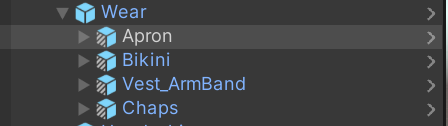
Each part has a component called Skinned Mesh Parts Info, and items with the same name in Group Tag will be merged together.
For example, Apron, Vest_ArmBand, and Chaps have Group Tag set to Wears and will be merged.
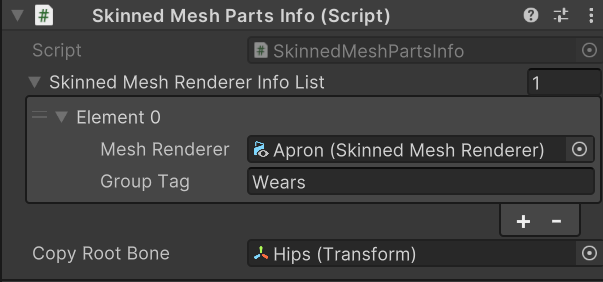
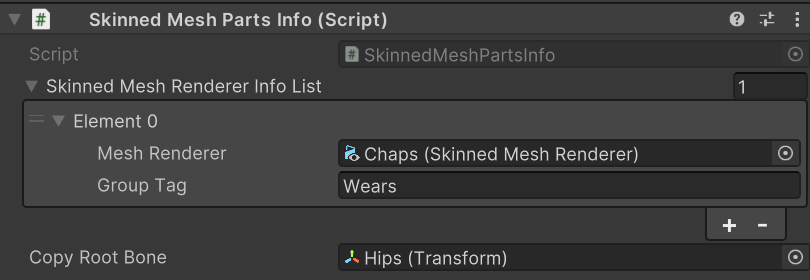
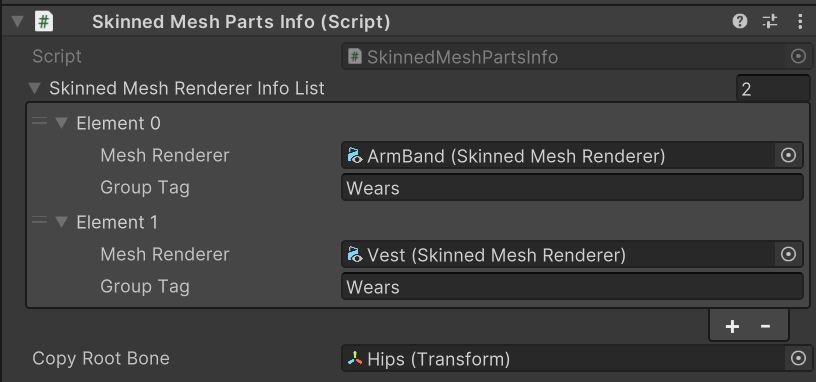
By giving each Group Tag a different name, they will no longer be merged.
I want to match body shape when modifying clothing etc. in Blender files
When adding clothing etc. with the included Blender files, if you want to match the changed body shape, you can change the body shape by modifying the shape keys (defShape.Belly etc.) of the BodyBase object.
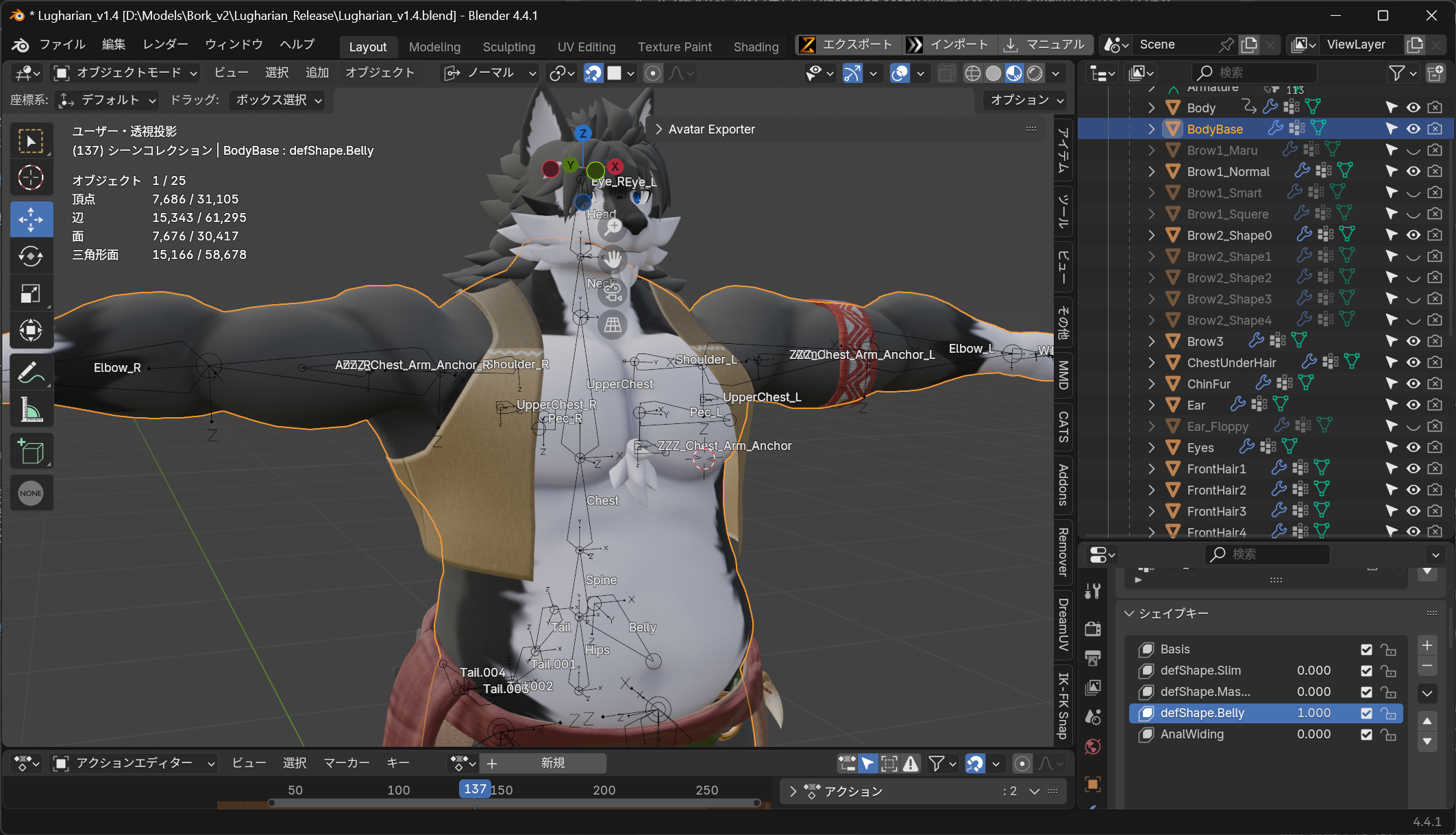
In Lugharian, only the body shape change shape keys of BodyBase can be operated, and other shape keys with the same name are set to be the same as BodyBase's shape keys using Blender's driver function.
Export the exported avatar as a model file (GLB).
To export the exported avatar so it can be imported into other software like Resonite or Blender, you can export it in glTF file format (.glb).
First, add a package to export GLTF from Unity to your project.
Open Window > Package Manager from the toolbar.
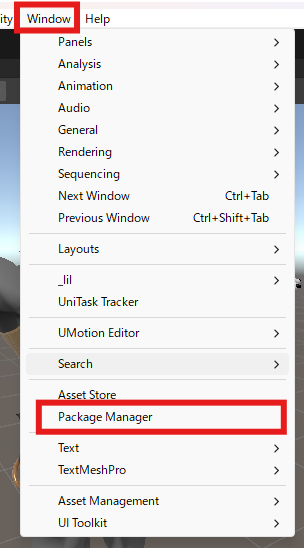
Press the + button and select Add package from git URL.

Enter the following URL and add it:
https://github.com/vrm-c/UniVRM.git?path=/Assets/UniGLTF
If a UniGLTF item is added to the toolbar, the installation was successful.
To use it, select Export glTF... from UniGLTF.

Set the avatar you want to export to Export Root.
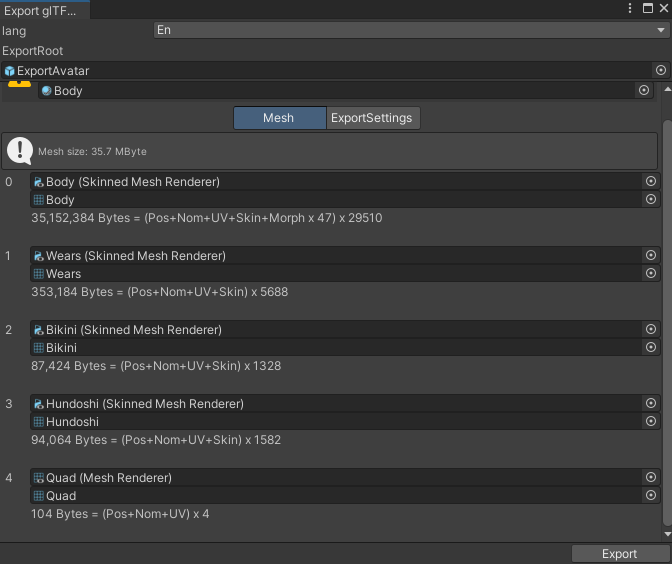
You can save it as a file by pressing Export without changing any settings.
To import into Blender, select File > Import > glTF 2.0 (.glb/gltf).
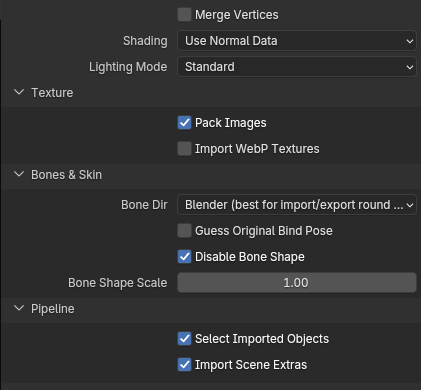
Import with the following settings: