Adding Compatible Parts to Lugharian Avatars
This guide provides detailed instructions on how to add compatible outfits and parts to the Lugharian avatar creator function.
Overview
Lugharian avatars feature a unique avatar customization function called AvatarCreator. This function allows users to freely edit their avatar's appearance in Unity, similar to a game's character creator function.
Base Object
The base prefab for Lugharian avatars is located at:
Assets/Lugharian/Prefabs/LugharianCreation.prefab
This prefab has the Avatar Creator Setting component attached, which manages the basic settings for the avatar creator function.
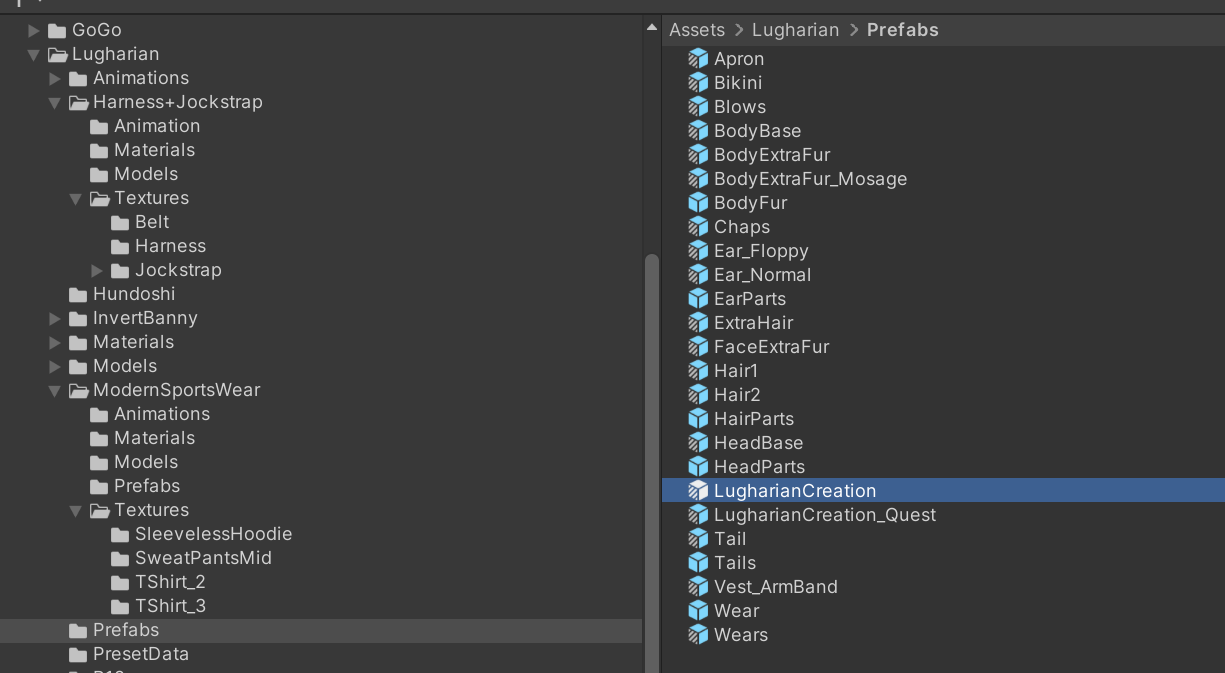
Parts Objects
Lugharian avatar parts have the Avatar Creator Parts Setting component attached.
These components function by being placed under the base object.
Basic Steps for Adding Parts
To add new parts to the Lugharian avatar creator function, follow these steps:
- Expand
LugharianCreation.prefabin the scene - Place the parts object under
LugharianCreation
Example of Adding Parts
Let's try adding a fundoshi (traditional Japanese underwear) outfit.
The fundoshi outfit prefab is located at:
Assets/Lugharian/Hundoshi/Hundoshi.prefab
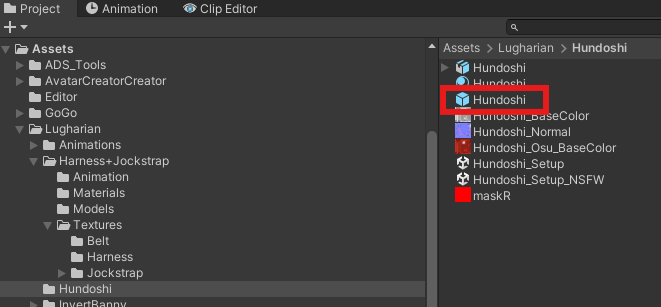
- Expand
LugharianCreation.prefabin the scene - Place
Hundoshi.prefabunderLugharianCreation
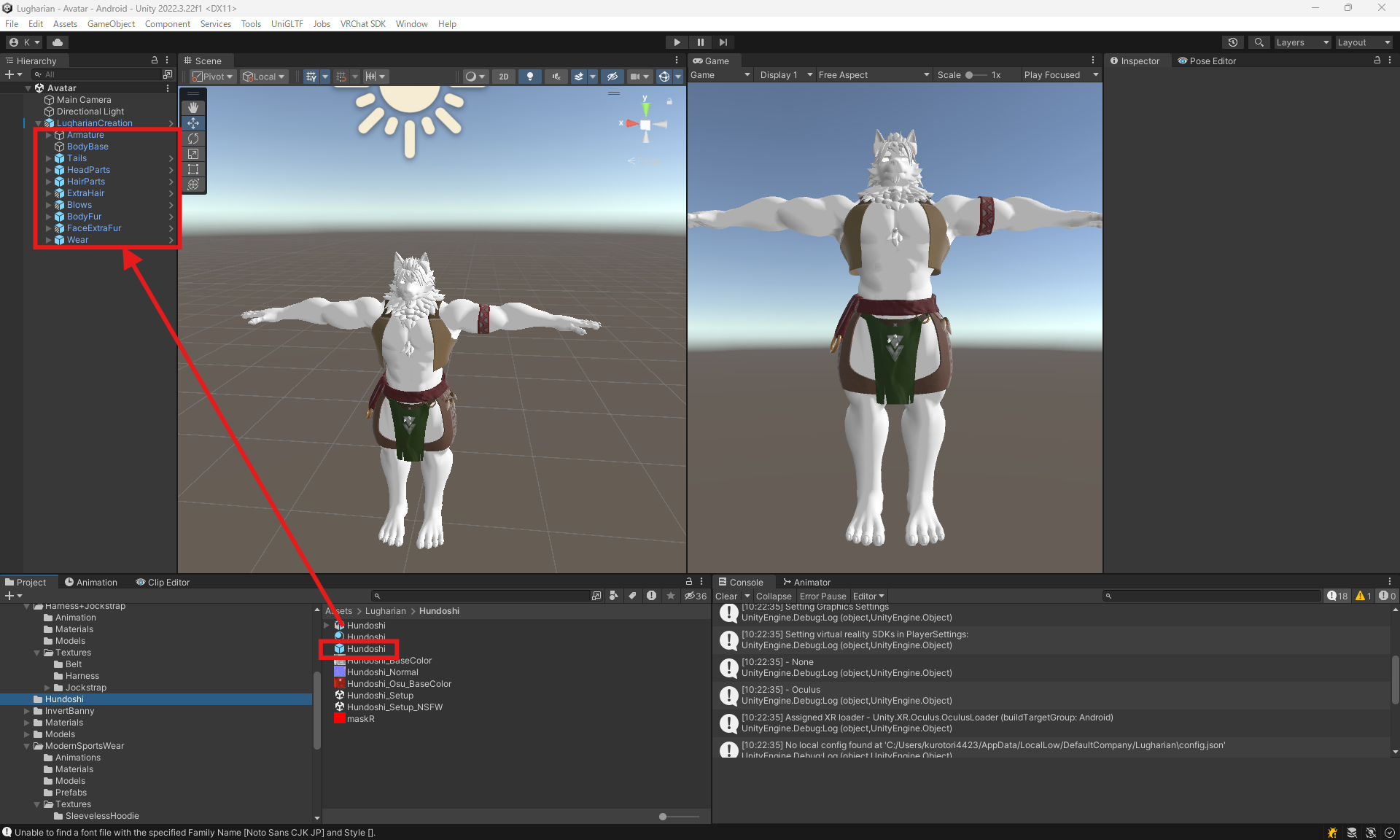
- It should look like the image below:
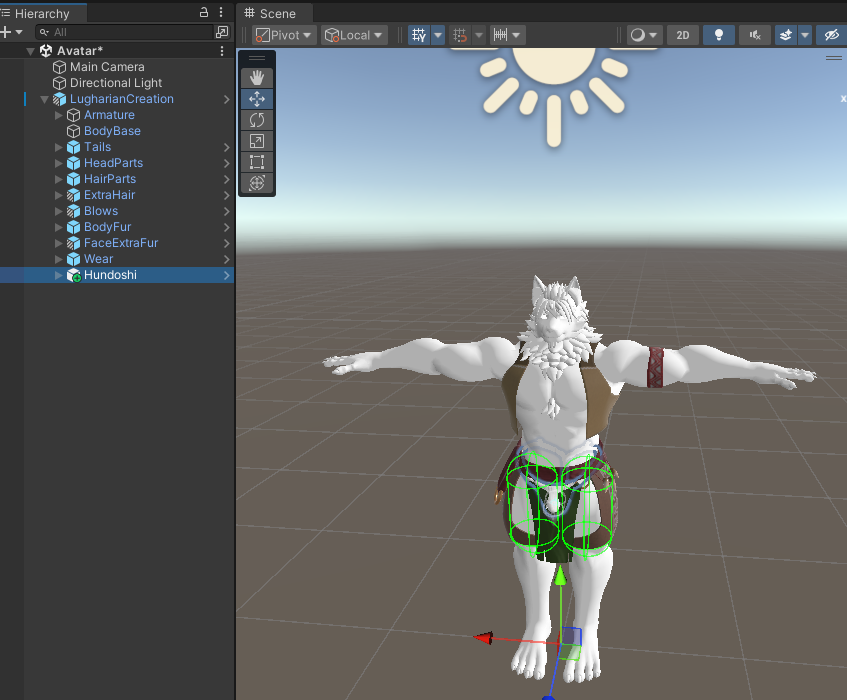
- In this state, press the
Playbutton to run the scene, and you can edit with the parts added.
If parts are not displayed correctly, please check the following:
- Whether the parts object is placed under
LugharianCreation.prefab